Alerts and Advices
Introduction
The general purpose of stream alerts is providing more transparent insights about the current live stream performances, estimated causes and possible solutions. Alerts offer multiple capabilities to take immediate action and therefore improve the streaming experience for your audience.
The current version supports ingest related quality and performance issues of the first mile, meaning from your ingest point via your ISP to our nearest ingest server.
Before starting
To begin, please sign in using your nanoStream Cloud/Bintu account credentials.
If you have not created an account yet, you can sign up or reach out to our dedicated sales team via the contact form or by sending an email to sales(at)nanocosmos.de.
Alerts are effortlessly activated for all organizations by default.
Starting from version 3.7.1.0 onwards, beside the Analytics Dashboard, the nanoStream Cloud Dashboard provides a seamless way to access alerts, ensuring a streamlined experience for your organization.
How to use
via nanoStream Analytics Dashboard
You can search for Alerts of your organization directly on the nanoStream Analytics Dashboard (Troubleshooting).
via nanoStream Analytics API
Our Analytics API provides 2 different alerting routes:
Click here to dive into the alerting routes and visit our nanoStream Analytics API developer documentation.
GETIngest stream alerts/advices: Returns all detected alerts and advices for all live ingest streams in the last 5 minutes.POSTCustom ingest stream alerts/advices: Returns all detected alerts and advices for all live ingest streams in the last 5 minutes. Additionally, through this API route, it is possible to pass ingest streams that should either be excluded from detection or define ingest streams for which an alert should be triggered if they are detected as offline.
via nanoStream Cloud Dashboard
You can view Alerts and Advices of your organization directly on the nanoStream Cloud Dashboard.
3.7.1.0With the release of version 3.7.1.0, the nanoStream Cloud Dashboard has enhanced its user interface in addition to the Analytics Dashboard.
For a detailed guide and additional insights in regards of the Alerts and Advices feature, please refer to the cloud dashboard's documentation page. This resource offers explanations to ensure you make the most out of the features available.
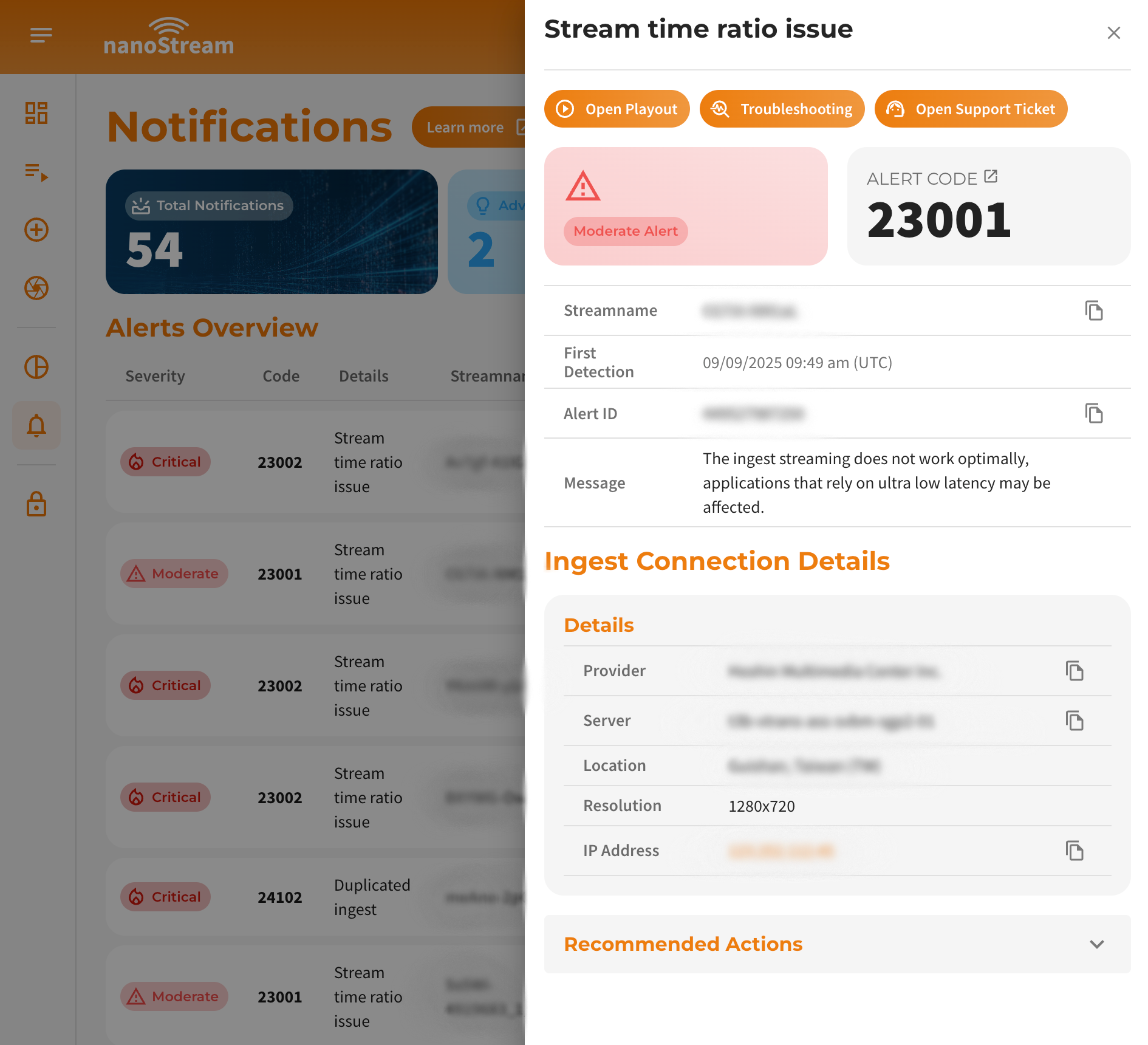 Screenshot: Alerts and Advices
Severity Levels
Alerts are categorized in multiple severity levels, that should help to prioritize them:
| Severity | Priority | Estimated Impact |
|---|---|---|
| Critical | highest | These stream alerts have the highest priority and might also have to biggest impact on the streaming experience in a fundamental way. You should engage these issues first. |
| Moderate | high | Such notifications can be considered as urgent. If there are no other critical alerts, try solving these next. |
| Minor | low | The corresponding issue might partially affecting the stream quality. |
| Advices | info | This can be seen as a general info about unused streaming potential. Please consider reading the advice message or refer to the advice codes in the table below. |
Lastly we fire an Advice for non-ABR streams with a higher bitrate than 4 MBit on every RTMP stat event. If you encounter such an advice, please consider using transcoding profiles (Activating ABR) to insure a better streaming experience for clients located in lower bandwidth regions.
Alert Detection
The used analysis algorithm for this alerting feature is based on the stream quality and performance logs of the previous 5 minutes. The analysis for live stream alerts is executed every minute. The considered time ranges for the calculation are:
- end of time range:
start of current minute - start of time range:
end - 5 minutes
To fire up alerts we make use of 4 RTMP stats events for each minute. 20 events are collected in total for the given maximum range of 5 minutes. These events contain information regarding metrics like the stream time ratio and the max frame delay, which are used to identify potential ingest stream performance/quality issues in order to classify them and raise corresponding alerts. These specific stats can be examined in detail using the troubleshooting feature on the Analytics Dashboard. Each alert is part of an specific alert category and owns a unique alert code.
Detection Delay
Please note that there is a 3–4 minute delay in detecting alerts relative to real time. From the delayed moment, a 5-minute time window in the past is used to detect alerts. This means that if a problem occurs, it may not trigger alert immediately; allow up to 9 minutes for notification.
Alert Types and Codes
[21000 - 21999]
General alerts include basic issues related to unexpected ingest behavior.
Description
Stream Offline (Expected Online) Alert
Description
This alert is triggered when the alerting system identifies a stream name provided in the request for the Custom Ingest Stream Alert API route as offline, despite it being expected to be online. This alert only appears in the response object of this API request, since users must explicitly define which streams they expect to be online. Keep in mind the 3-4 minute delay in detection.
Subtypes
| Code | Type | Description | Recommended Action |
|---|---|---|---|
| 21001 | Offline | The stream is unexpectedly offline. | Restart the stream. |
[22000 - 22999]
Stream issues that may appear as a consequence of irregular communication problems with the nanoStream Cloud can be identified through stability alerts.
Continous Restarts Alert
Description
The system monitors stream restart attempts. If at least three restarts occur within a 5-minute period, a Continuous Restarts Alert is triggered.
Subtypes
| Code | Type | Description | Recommended Action |
|---|---|---|---|
| 22000 | Continous Restarts | The ingest stream starts and stops continuously. | Restart the stream. |
| 22001 | Continous Restarts with low performance | The ingest stream starts and stops continuously, while also having performance issues. | Check your ingest device's internet connection. Restart the stream manually. |
Inactive Ingest Alert
Description
This alert is triggered when the system detects that an ingest stream is connected to the nanoStream Cloud infrastructure but is not actively sending data. This may indicate encoder configuration issues, network problems, or source-side failures.
Subtypes
| Code | Type | Description | Recommended Action |
|---|---|---|---|
| 22010 | Inactive Ingests | The ingest stream is connected but not actively sending data. | Check your encoder or streaming source configuration. Ensure the source is actively sending data to the stream. |
| 22011 | Inactive and Active Ingests | The ingest stream has both inactive and active connections. | Check your encoder or streaming source configuration. Some connections are not actively sending data while others are. Make sure to terminate all unintended (inactive) ingests, so the active connection is the only one running. |
[23000 - 23999]
Either bandwidth issues or insufficient encoder/computing performances of the ingest source can be observed by fired performance alerts.
Stream Time Ratio Alert
Description
If the average of all stream time ratio (STR) values is ≤ 0.9, the stream has potential performance issues. Further classifications follow by matching the given conditions in one of these cases below for at least 5 stream time ratio values. If one case is true, a performance alert is created for this particular stream.
- Suboptimal Performance: 0.93 ≥ (5 STR values) > 0.86
- Poor Performance: 0.86 ≥ (5 STR values)
Subtypes
| Code | Type | Description | Recommended Action |
|---|---|---|---|
| 23001 | Suboptimal Performance | The ingest streaming is not optimal; ultra-low latency reliant apps may be affected. | Restart the stream and do a bandwidth speedtest afterwards. |
| 23002 | Poor Performance | The ingest streaming is malfunctioning. |
Max Frame Delay Alert
Description
The Max Frame Delay (MFD) metric measures the maximum per-frame buffering latency at the ingest server, tracked separately for the audio and video track. A persistently elevated value increases end-to-end latency, while frequent brief stalls interrupt playback on their own even if the typical delay looks fine. Depending on which of these behaviors is observed, one of the alerts below is raised for the stream.
The three Max Frame Delay alerts describe different effects rather than increasing severity levels. Since a stream can only show one of these behaviors at a time, just one alert is ever reported for it at once — the one with the widest viewer impact takes precedence if multiple conditions are met simultaneously.
Subtypes
| Code | Type | Description | Recommended Action |
|---|---|---|---|
| 23011 | Persistently Elevated Frame Delay (Ultra Low Latency) | The frame delay is moderately elevated; regular playback is unaffected, but applications relying on ultra low latency may be affected. | No action is required unless you rely on ultra low latency playback. In that case, reduce the encoder's output buffer and verify the upstream connection has bandwidth headroom above the configured bitrate. |
| 23012 | Persistently High Frame Delay | The typical frame delay of the ingest is high, increasing end-to-end latency for all viewers regardless of playback mode. | Check the encoder for an oversized output buffer or an overly long keyframe interval, and verify the upstream bandwidth. Restart the stream after correcting the settings. |
| 23013 | Recurring Ingest Stalls | The ingest stalls repeatedly but briefly; viewers may see short interruptions, while the typical frame delay stays acceptable. This usually points at the network path rather than the encoder. | Check the network path between the encoder and ingest server for packet loss, bandwidth drops or an unstable uplink. Restarting the stream only helps if the encoder itself is the source; it will not resolve an unstable network path. |
[24000 - 24999]
Infrastructure alerts represent issues that may be invisible from the outside of our infrastructure and even if there are no direct impairments stream performance/quality wise, these issues can lead to critical problems. Alerts of this category serve especially as early notification system, so taking action is immediately possible. Occuring problems with the underlying Infrastructure of the corresponding stream are detected by analysing just the passthrough (non-transcoding) streams.
Duplicated Ingest Alert
Description
Multiple references on different server instances fires a Duplicated Ingest Alert. Depending on the passthrough ingest location or source, the specific alert varies slightly.
Subtypes
| Code | Type | Description | Recommended Action |
|---|---|---|---|
| 24100 | General Duplicated Ingests | Duplicated ingests detected. | Stop all the ingests using the same stream name from all machines/encoders/locations and restart only 1 from the intended machine/encoder/location. Review ingest workflow. |
| 24101 | Multiple Infrastructures | Duplicated ingests found on varying infrastructures. | |
| 24102 | Multiple Locations | Duplicated ingests found across different locations. | |
| 24103 | Multiple IPs | Duplicated ingests have different IP addresses. |
Advice Types and Codes
Advices can be seen as low priority alerts and shall inform you about possible improvements of the stream configuration.
Description
The ingest stream has a high bitrate. Viewers with poor connection might not be able to playback the stream smoothly.
Subtypes
| Code | Description | Recommended Action |
|---|---|---|
| 29001 | High ingest bitrate may affect playback on slow connections. | Consider to use adaptive bitrate streams with different transcoding profiles. |
What to Do with Alerts
The alerts serve several purposes:
- Get notified immediately if something goes wrong with your streams
- Observe stream quality degradation in real time before a customer complains
- Gain a bigger picture of your streaming system's stability
The goal is to resolve the issues causing the alert as quickly as possible.
Steps to Handle Alerts
These guidelines can be used to get an idea about what the problem is, why it is appearing and how to troubleshoot any kind of alert code in general.
1. Open up the corresponding stream playback within the dashboard and look out for anomalies, like continous buffering, stuttering, visual interferences or connection issues.
2. Execute a hard restart of the ingest connection / encoder source to force application to restart the ingest process.
3. Use the direct link to the Troubleshooting Page right below the alert to investigate the ingest stream, while looking for anomalies within the stream duration, like performance drops or occurred errors. Using the provided direct link of the alert is automatically filling the necessary data and you can begin to troubleshoot right away. If you do not know what to look for, please consider taking a look at these examples.
4. If the alert persists, please use the support link of the corresponding alert below to submit a ticket with the necessary details.
While the exact solution may vary, some common approaches include:
- General performance issues detected by Stream Time Ratio metrics (error codes: 23001 / 23002): Restart the stream and run a bandwidth speed test afterwards
- Persistently elevated/high Max Frame Delay (error codes: 23011 / 23012): Check the encoder's output buffer size, keyframe interval and upstream bandwidth, then restart the stream; for 23011 (ultra low latency only), no action is required unless you rely on ultra low latency playback
- Recurring ingest stalls detected by Max Frame Delay (error code: 23013): Check the network path between encoder and ingest server for packet loss or bandwidth drops; a restart only helps if the encoder itself is the source
- Continuous restarts (error codes: 22000 / 22001): Restart the stream; for 22001, check local bandwidth using a speed test
- Inactive ingests (error codes: 22010 / 22011): Check encoder configuration; ensure the source is actively sending data; verify network connectivity between encoder and ingest server
- Duplicated ingests (error codes: 24100–24103): Stop all ingests using the same stream name across all machines/encoders/locations; restart only one from the intended source and review the ingest workflow
If an alert continues to occur despite attempts to resolve it, your overall streaming workflow may not be optimal and should be reviewed with performance measurements.